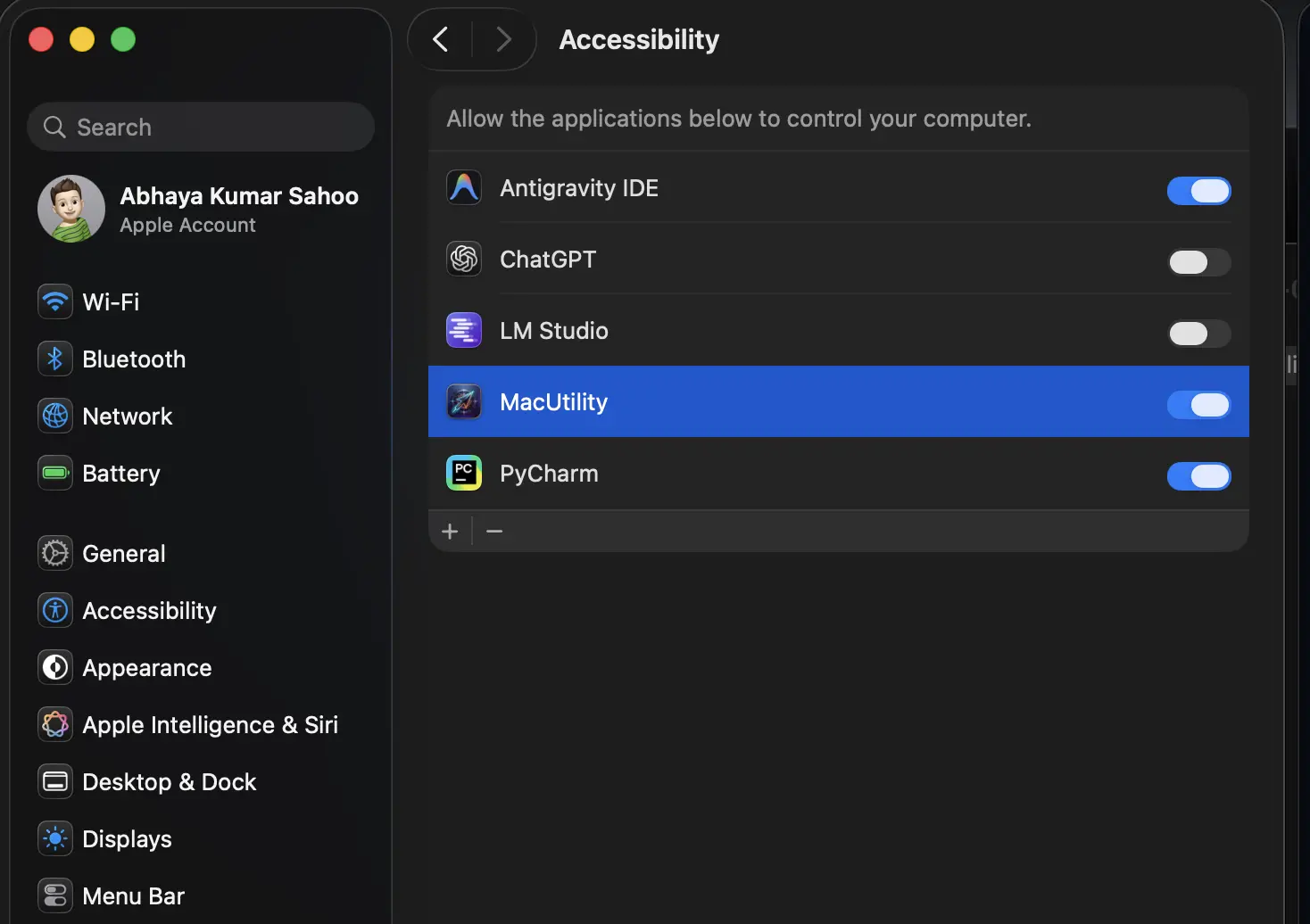
Security & Permission Setup
Because MacUtility is a native, free automation utility, macOS security requires you to bypass Gatekeeper (verification) and grant Accessibility permissions so that it can safely simulate clicks on your screen.
1
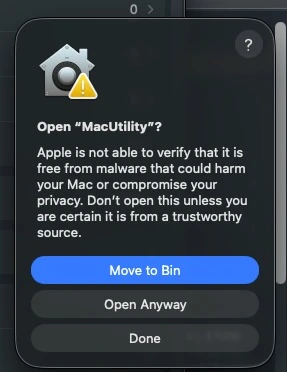
Gatekeeper Warning
When you first double-click the MacUtility app, macOS will display an alert stating that Apple cannot verify the software. This is normal for open-source or indie-developed utilities that aren't distributed via the App Store.
If visible, click Open Anyway. Otherwise, proceed to Step 2 to override the block.
2
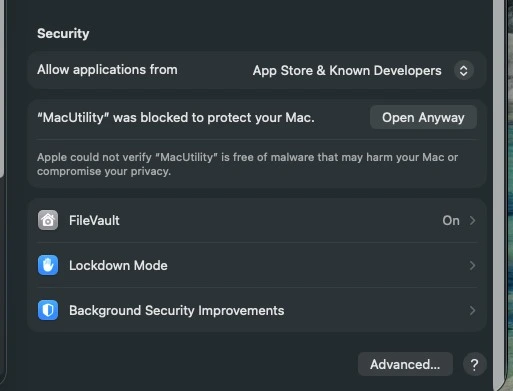
Approve in Security Settings
If the launch is blocked, open your Mac's System Settings:
- Navigate to Privacy & Security.
- Scroll down to the Security section.
- Find the alert stating "MacUtility" was blocked to protect your Mac.
- Click Open Anyway and authenticate with your password or Touch ID.
3
Grant Accessibility Access
Finally, to allow MacUtility to simulate mouse click positions and keystroke commands:
- Go to System Settings > Privacy & Security > Accessibility.
- Locate MacUtility in the list.
- Toggle the switch next to it to the ON position.