Configuration Presets
Save and manage your favorite Auto Clicker configurations.
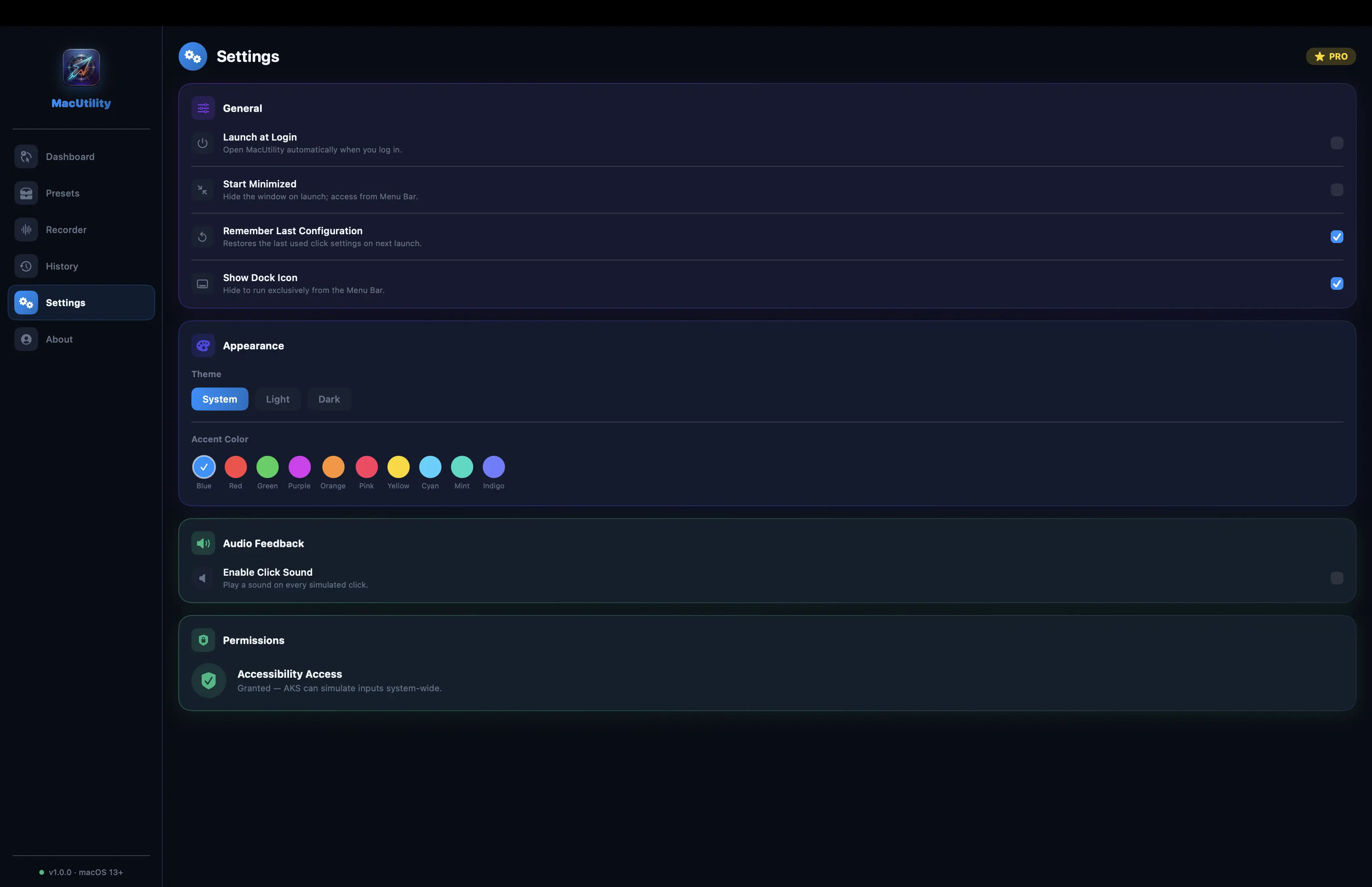
Tired of entering the same Click Interval and Target Location every time you play a specific game? MacUtility allows you to save your entire dashboard configuration as a Preset.
How to use Presets:
- Configure your Dashboard exactly how you want it (intervals, location, etc.).
- Click the Save Preset button in the top right of the Dashboard.
- Give your preset a memorable name (e.g., "Minecraft AFK Farm").
- Navigate to the Presets tab to view, load, or delete your saved configurations instantly.